Getting Started#
Installation#
We recommend to run Casanovo in a dedicated Conda environment. This helps keep your environment for Casanovo and its dependencies separate from your other Python environments.
Note
Don’t know what conda is? Conda is a package manager for Python packages and many others. We recommend installing the Anaconda Python distribution which includes conda. Check out the Windows, MacOS, and Linux installation instructions.
Once you have Conda installed, you can use this helpful cheat sheet to see common commands and what they do.
Create a Conda environment#
First, open the terminal (MacOS and Linux) or the Anaconda Prompt (Windows). All of the commands that follow should be entered into this terminal or Anaconda Prompt window—that is, your shell. To create a new Conda environment for Casanovo, run the following:
conda create --name casanovo_env python=3.13
This will create an Anaconda environment called casanovo_env that has Python 3.13 installed.
Note
Currently, due to outstanding issues with support of Pytorch on Mac, you should install with Python version 3.10, like this conda create --name casanovo_env python=3.10.
Also, note that Apple Silicon is not yet supported by Pytorch, so Mac users will be restricted to CPU use only.
Activate this environment by running:
conda activate casanovo_env
Your shell should now say (casanovo_env) instead of (base). If this is the case, then you have set up Conda and the environment correctly.
Note
Be sure to retype in the activation command into your terminal when you reopen Anaconda and want to use Casanovo.
Optional: Install PyTorch Manually#
Casanovo employs the PyTorch machine learning framework, which by default will be installed automatically along with the other dependencies. However, if you have a graphics processing unit (GPU) that you want Casanovo to use, we recommend installing PyTorch manually. This will ensure that the version of PyTorch used by Casanovo will be compatible with your GPU. For installation instructions, see the PyTorch documentation
Install Casanovo#
You can now install the Casanovo Python package (dependencies will be installed automatically as needed):
pip install casanovo
After installation, test that it was successful by viewing the Casanovo command line interface help:
casanovo --help
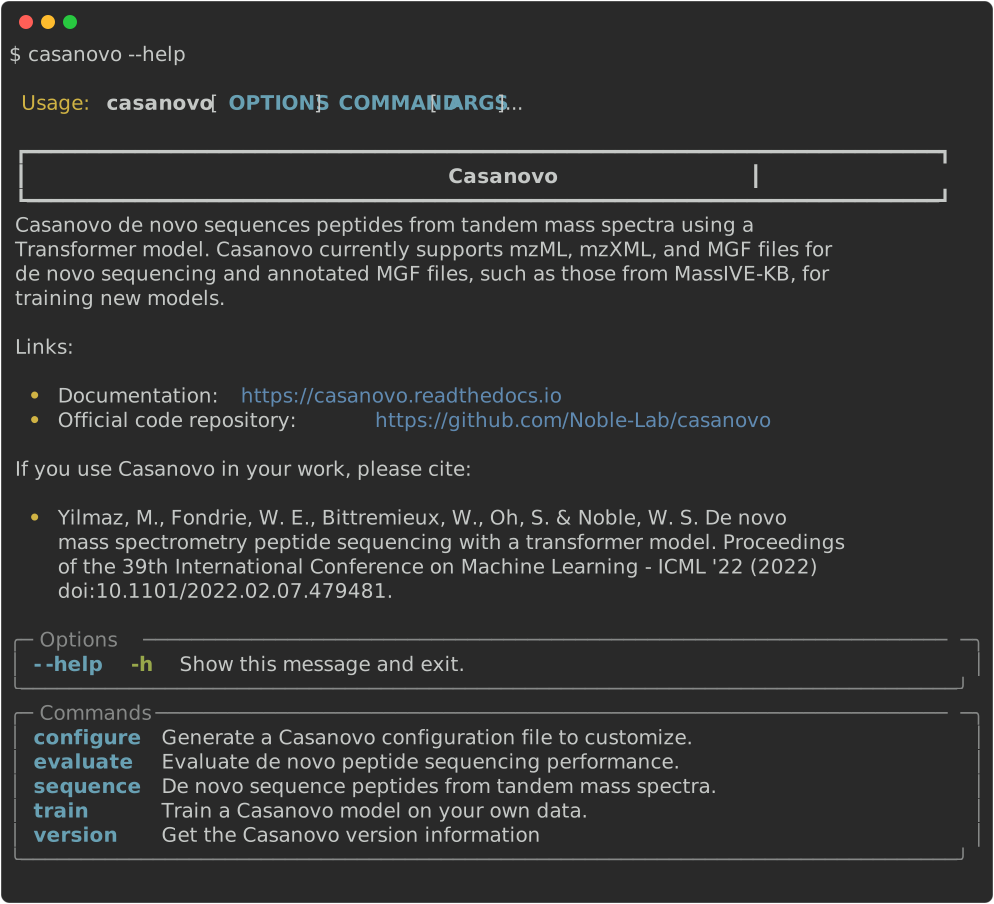
All auxiliary data, model, and training-related parameters can be specified in a YAML configuration file. To generate a YAML file containing the current Casanovo defaults, run:
casanovo configure
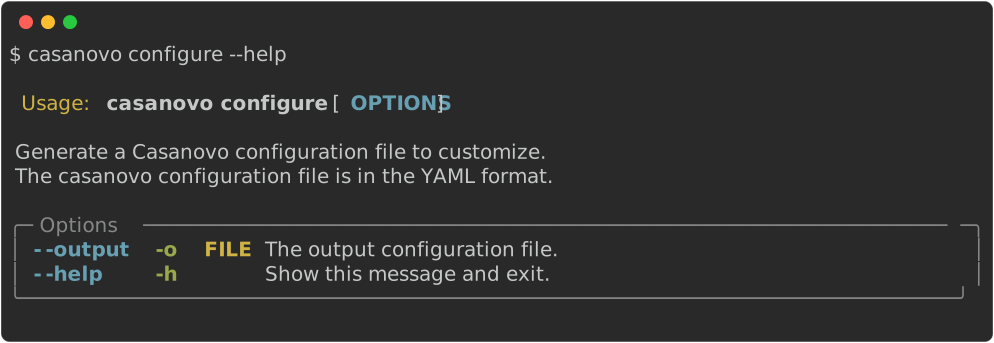
When using Casanovo to sequence peptides from mass spectra or evaluate a previous model’s performance, you can change some of the parameters in the first section of this file. Parameters in the second section will not have an effect unless you are training a new Casanovo model.
Download Model Weights#
Using Casanovo to sequence peptides from new mass spectra, Casanovo needs compatible pretrained model weights to make its predictions.
By default, Casanovo first checks for compatible cached weights before attempting to download from GitHub.
Weights are cached in ~/.cache/casanovo/ on Linux, ~/Library/Caches/casanovo/ on macOS, and a platform-specific user cache directory on Windows (typically under %LOCALAPPDATA%\casanovo\).
If no compatible weights are found in the cache, then Casanovo downloads them from GitHub, matching first on exact version (major, minor, patch), then falling back to major+minor, and finally to major version only.
If a cached file becomes corrupted, delete it from the cache directory and Casanovo will re-download it on the next run.
Note
The GitHub API used for auto-download is rate-limited to 60 requests per IP per hour.
If you hit this limit, download the weights manually from the Releases page and specify the file with --model.
Our model weights are uploaded with new Casanovo versions on the Releases page under the “Assets” for each release (file extension: .ckpt).
This model file or a custom one can then be specified using the --model command-line parameter when executing Casanovo.
Not all releases will have a model file included on the Releases page, in which case model weights for alternative releases with the same major version number can be used.
Running Casanovo#
Note
We recommend a Linux system with a dedicated GPU to achieve optimal runtime performance.
De novo peptide sequencing#
To de novo sequence your own mass spectra with Casanovo, use the casanovo sequence command:
casanovo sequence spectra.mgf
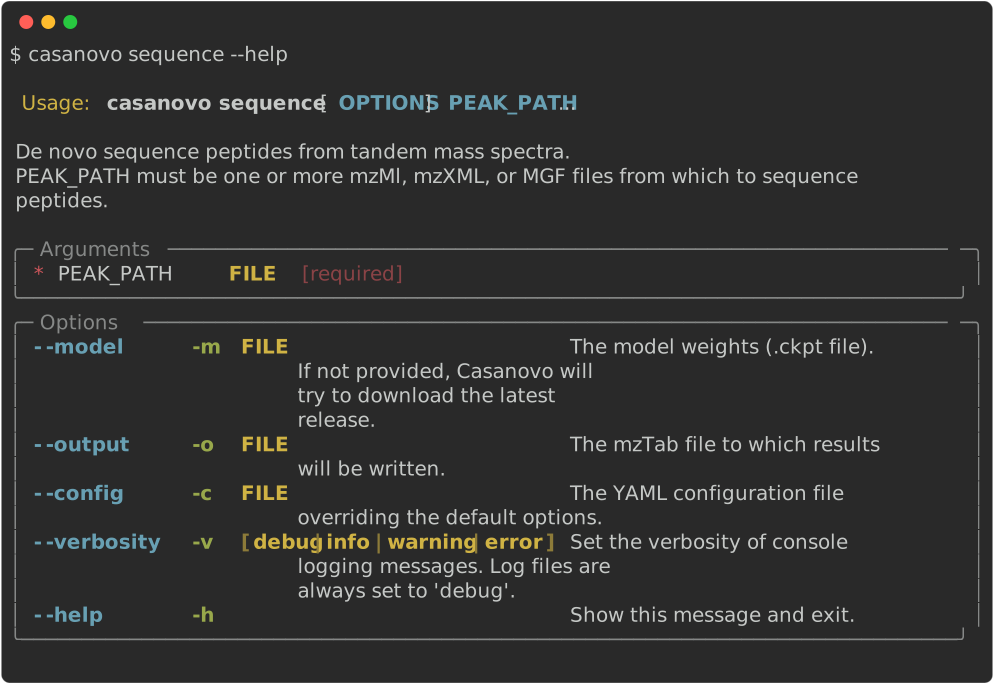
Casanovo can predict peptide sequences for MS/MS spectra in mzML, mzXML, and MGF files. This will write peptide predictions for the given MS/MS spectra to the specified output file in mzTab format.
By default, Casanovo reports the single top-scoring candidate peptide per spectrum.
To retrieve multiple candidates per spectrum (e.g. for downstream re-ranking), set top_match in the configuration file:
top_match: 5
Each candidate will appear as a separate row in the mzTab output, distinguished by the PSM_ID field.
Evaluate De Novo Sequencing Performance#
To evaluate de novo sequencing performance based on known mass spectrum annotations, use the casanovo sequence command with the --evaluate option:
casanovo sequence annotated_spectra.mgf --evaluate
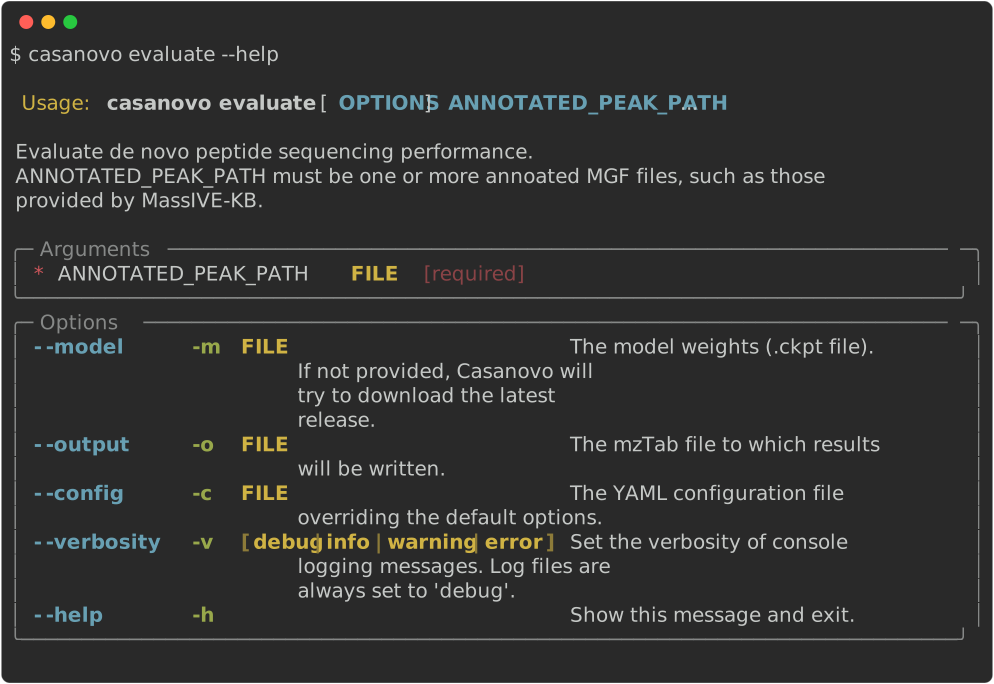
To evaluate the peptide predictions, ground truth peptide labels must to be provided as an annotated MGF file where the peptide sequence is denoted in the SEQ field.
Compatible MGF files are available from MassIVE-KB.
Note that the --evaluate flag requires that top-match is set to 1 in the configuration file.
Database searching#
To perform database search using Casanovo as a score function, use the casanovo db-search command:
casanovo db-search spectra.mgf proteome.fasta
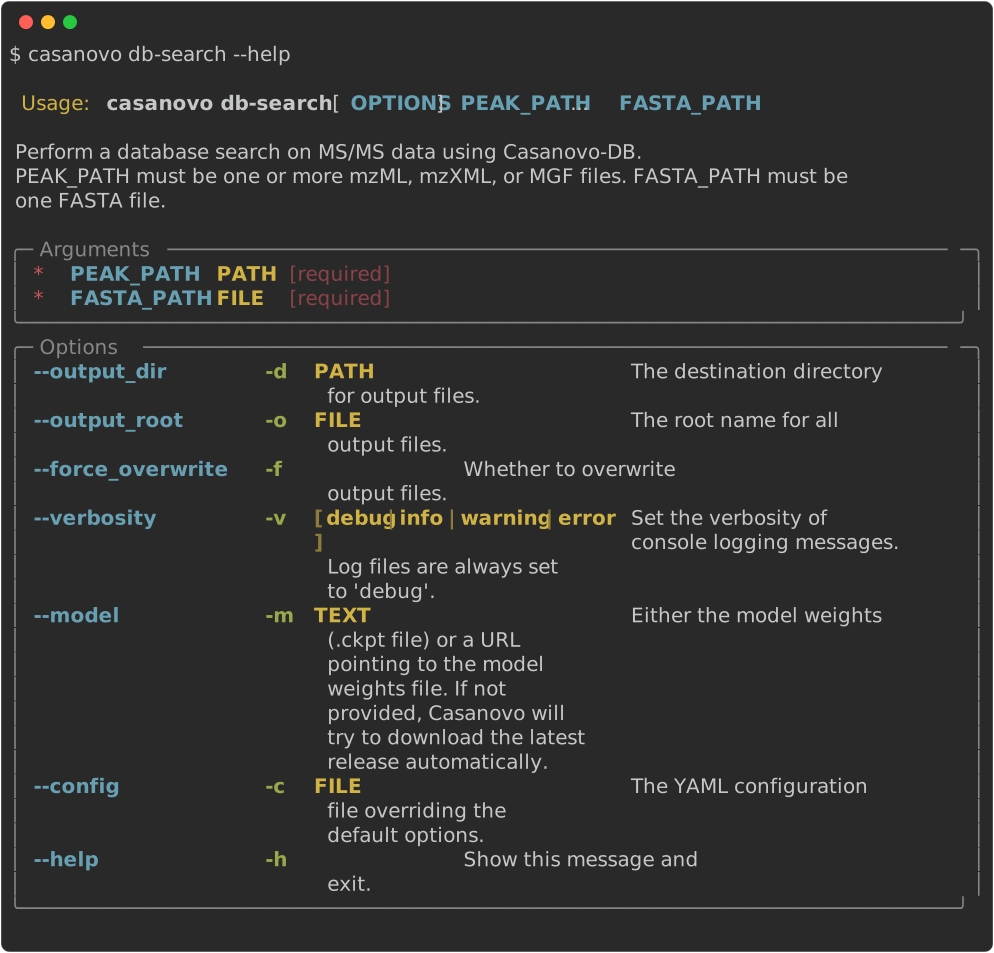
In this case, besides MS/MS spectra in mzML, mzXML, or MGF file(s), Casanovo needs as minimal input the protein database in the FASTA format. Additional settings that determine how peptides are derived from the protein sequences can be specified in the YAML configuration file (default: tryptic digestion). This will write PSM scores for the given MS/MS spectra and FASTA file to the specified output file in mzTab format.
Note
Database searching is an experimental feature that may run very slowly for large protein databases.
Train a new model#
To train a model from scratch, run:
casanovo train --validation_peak_path validation_spectra.mgf training_spectra.mgf
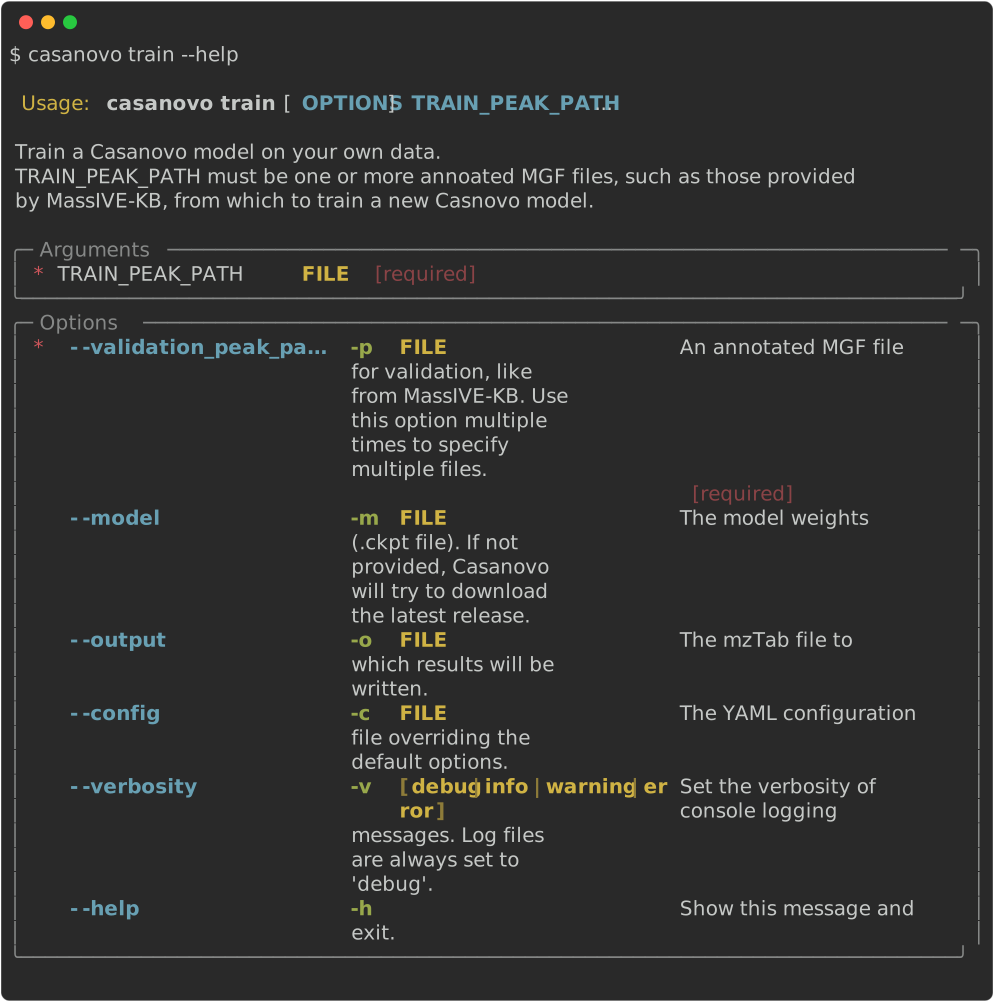
Training and validation MS/MS data need to be provided as annotated MGF files, where the peptide sequence is denoted in the SEQ field.
If a training is continued for a previously trained model, specify the starting model weights using --model.
To fine-tune an existing model with new post-translational modifications, additional configuration is required; see the FAQ for a detailed guide.
Try Casanovo On a Small Example#
Let’s use Casanovo to sequence peptides from a small collection of mass spectra in an MGF file (~100 MS/MS spectra).
The example MGF file is available at sample_data/sample_preprocessed_spectra.mgf.
To obtain de novo sequencing predictions for these spectra:
Download the example MGF above.
Ensure your Casanovo Conda environment is activated by typing
conda activate casanovo_env. (If you named your environment differently, type in that name instead.)Sequence the mass spectra with Casanovo, replacing
[PATH_TO]with the path to the example MGF file that you downloaded:
casanovo sequence [PATH_TO]/sample_preprocessed_spectra.mgf
Note
If you want to store the output mzTab file in a different location than the current working directory, specify an alternative output location using the --output_dir parameter.
This job should complete in < 1 minute.
Congratulations! Casanovo is installed and running in de novo mode.
Try database searching on a small example#
We can also use Casanovo to perform database searching with the same MGF from above and a FASTA file.
The example MGF file is available at sample_data/sample_preprocessed_spectra.mgf.
The example FASTA file is available at sample_data/preprocessed_mouse.fasta.
To run Casanovo in database searching mode:
Download the example MGF and FASTA files above.
Ensure your Casanovo Conda environment is activated by typing
conda activate casanovo_env. (If you named your environment differently, type in that name instead.)Perform database search with Casanovo-DB, replacing
[PATH_TO_MGF]with the path to the example MGF file and replacing[PATH_TO_FASTA]with the path to the example FASTA file that you downloaded:
casanovo db-search [PATH_TO_MGF]/sample_preprocessed_spectra.mgf [PATH_TO_FASTA]/preprocessed_mouse.fasta
This job should complete in < 1 minute.
Congratulations! Casanovo is installed and running in database searching mode.
Advanced: Train a new model#
Most users of Casanovo will not need to train their own models. However, if you have a large collection of annotated spectra and want to try training your own model from scratch, you can run:
casanovo train --validation_peak_path validation_spectra.mgf training_spectra.mgf
Training and validation MS/MS data need to be provided as annotated MGF files, where the peptide sequence is denoted in the SEQ field.
Optionally, you can continue training using weights from a previously trained model.
This can be useful if you have a smaller set of annotated spectra but want to fine-tune the model to potentially capture properties of spectra that are particular to your experimental setup.
To do this fine-tuning, specify the starting model weights using --model.
Note that you cannot (currently) fine-tune a model using a different amino acid alphabet. Hence, if you want to add new types of PTMs to Casanovo, you have to train from scratch. We are working on adding functionality to allow novel PTMs during fine-tuning, using the approach pioneered by Modanovo.
Lance file caching#
During training, Casanovo converts the input MGF files into Lance format — a columnar binary format that enables faster data loading. By default these Lance files are written to a temporary directory and deleted when training finishes, so MGF files are re-converted on every run.
To avoid re-converting on subsequent runs, set lance_dir in the configuration file to a persistent directory:
lance_dir: /path/to/lance_cache
Casanovo will write train.lance and valid.lance to that directory on the first run and reuse them automatically on later runs with the same data.
You can also pass a pre-built .lance file directly as the training or validation input instead of an MGF file, as long as only one file is provided per split:
casanovo train --validation_peak_path valid.lance train.lance
GPU memory and gradient accumulation#
If training runs out of GPU memory, reduce train_batch_size in the configuration file.
To maintain an equivalent effective batch size, set accumulate_grad_batches to compensate — for example, halving train_batch_size and doubling accumulate_grad_batches keeps the same effective batch size with half the peak memory usage:
train_batch_size: 16
accumulate_grad_batches: 2
Shuffle buffer size#
During training, spectra are shuffled using a streaming buffer of shuffle_buffer_size spectra (default: 10,000).
A larger buffer improves randomization but uses more memory; reduce it if training runs out of CPU memory:
shuffle_buffer_size: 1000